
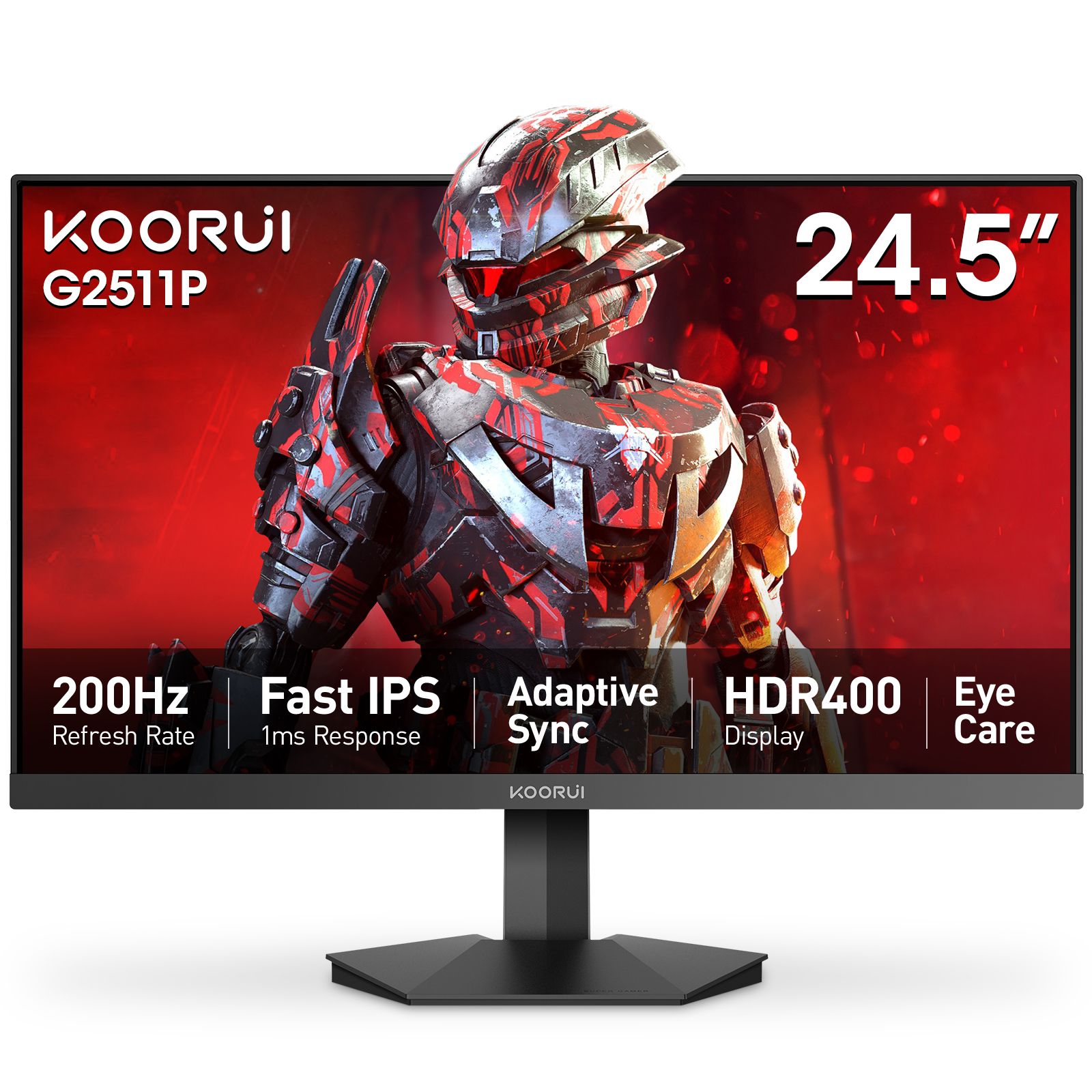
Connect and position your monitor
Assemble the stand as shown in your model’s manual and place it on a stable surface. Connect the supplied power equipment and a suitable display cable. On a desktop with a dedicated graphics card, use its display output. Select the matching input in the monitor’s on-screen menu. Adjust the screen so text is comfortable to read without leaning forward.
Set the resolution and text size
In Windows 11, open Settings → System → Display and select the correct monitor. Choose its native resolution, normally marked Recommended. Adjust Scale for comfortable text and interface size. Scaling changes the size of interface elements; lowering the display resolution changes the number of pixels in the desktop image.
Choose your refresh rate
Open Settings → System → Display → Advanced display. Select your Koorui monitor and choose the supported refresh rate you want. Check the resolution afterward: some high-refresh choices use a different resolution. The available options depend on the monitor, connection and computer. Microsoft’s refresh-rate instructions explain the Windows controls.
If your expected mode is missing
Check the exact model’s supported input modes. Connect directly to the computer while checking the setup; a dock or adapter can impose its own limit. Use a cable suitable for the required mode and update your graphics driver from the GPU or computer manufacturer. For dual-mode monitors, select the intended mode in the monitor menu before checking Windows again.
Tune the picture for your room
Start with a standard picture preset and a comfortable brightness. Try the available response-time settings in the content you use; the strongest setting is not automatically the clearest. If your monitor supports adaptive sync, use its manual and graphics-driver controls to configure it. For HDR content, use a supported HDR display mode and review both Windows and game settings.
Find model-specific help
Use the Downloads link on your product page for verified manuals where available. Follow the model’s instructions for panel care and cleaning. If you need setup help, message us with the model, computer or graphics card, cable connection and the display mode you want. Browse the other guides for size, resolution and panel comparisons.